Table of Contents
If you caught the Forgejo setup project I did previously, you will have a working Forgejo instance on a VPS. Now on that same VPS, we are going to add some additional features to it.
Forgejo Runner is the daemon that fetches and executes Forgejo Actions workflows, similar to GitHub Actions runners. This lets us run jobs when code changes in our repositories. My use case is deploying static sites from a Forgejo repository to a git-pages instance. I will walk you through setting up the runner and how to run Forgejo Actions.
I will do a walkthrough of git-pages setup in a later project.
Update (July 2026): I have since taken down my Forgejo Actions runner and the git-pages container I used with it. I still self-host Forgejo to display code, but I did not want to maintain those services.
Forgejo runner setup
I will be following the Forgejo runner setup guide from the Forgejo documentation: https://forgejo.org/docs/latest/admin/actions/runner-installation/#oci-image-installation. I suggest you have this up as you are following along.
SSH into your VPS and create a directory for the runner.
mkdir forgejo-runner
cd forgejo-runner/
The documentation gives us a script to setup the data directory with the correct permissions.
#!/usr/bin/env bash
set -e
mkdir -p data/.cache
chown -R 995:993 datachmod 775 data/.cachechmod g+s data/.cache
Before creating the docker-compose file, we need to check what the most up to date runner is. Check the oci images page for the most up to date runner. The documentation refers to version 11, but I will be using version 12 since that is the most up to date version as I am writing this.
Create a docker-compose file as shown below. Replace the image version with the most up to date runner version you found earlier.
services:  docker-in-docker:    image: docker:dind    container_name: "docker_dind"    privileged: "true"    command: ["dockerd", "-H", "tcp://0.0.0.0:2375", "--tls=false"]    restart: "unless-stopped"
  runner:    image: "data.forgejo.org/forgejo/runner:12" # The most up to date runner version.    links:      - docker-in-docker    depends_on:      docker-in-docker:        condition: service_started    container_name: "runner"    environment:      DOCKER_HOST: tcp://docker-in-docker:2375    # User without root privileges, but with access to `./data`.    user: 995:993 # The git user we created earlier.    volumes:      - ./data:/data    restart: "unless-stopped"
    command: '/bin/sh -c "while : ; do sleep 1 ; done ;"'
The command being used in the last line above is there so we can jump into the container to register the Forgejo runner with our Forgejo instance.
To configure and register the runner, start the runner service with docker compose up -d and enter it via:
docker exec -it runner /bin/shIn this shell, run the command forgejo-runner generate-config > config.yml to create a configuration file with default settings. You can then edit the configuration file to apply your preferred settings. See the default config docs for more information on configuration settings.
I recommend setting the labels in the config.yml file as they will correspond to the docker images that will run the actions you provide. For entering in runner labels, I used ubuntu-latest:docker://node:24-bookworm,ubuntu-20.04:docker://node:20-bookworm because I will be using Node 24 for the projects I run.
After you are done editing the config.yml file, run the forgejo-runner register command to register the runner and follow the registration instructions. After this is done, we can exit the container shell by typing exit. Now outside of the container, bring down the container with docker compose down.
Edit the docker-compose.yml file to add the correct command for the runner:
services:  docker-in-docker:    image: docker:dind    container_name: 'docker_dind'    privileged: 'true'    command: ['dockerd', '-H', 'tcp://0.0.0.0:2375', '--tls=false']    restart: 'unless-stopped'
  runner:    image: 'data.forgejo.org/forgejo/runner:12'    links:      - docker-in-docker    depends_on:      docker-in-docker:      condition: service_started    container_name: 'runner'    environment:      DOCKER_HOST: tcp://docker-in-docker:2375    user: 995:993 # The git user we created earlier.    volumes:      - ./data:/data    restart: 'unless-stopped'
    command: '/bin/sh -c "while : ; do sleep 1 ; done ;"'    command: '/bin/sh -c "sleep 5; forgejo-runner daemon"'
Run the docker-compose.yml file again and the runner should be ready to use.
One way to check this runner is working is by checking start up logs.
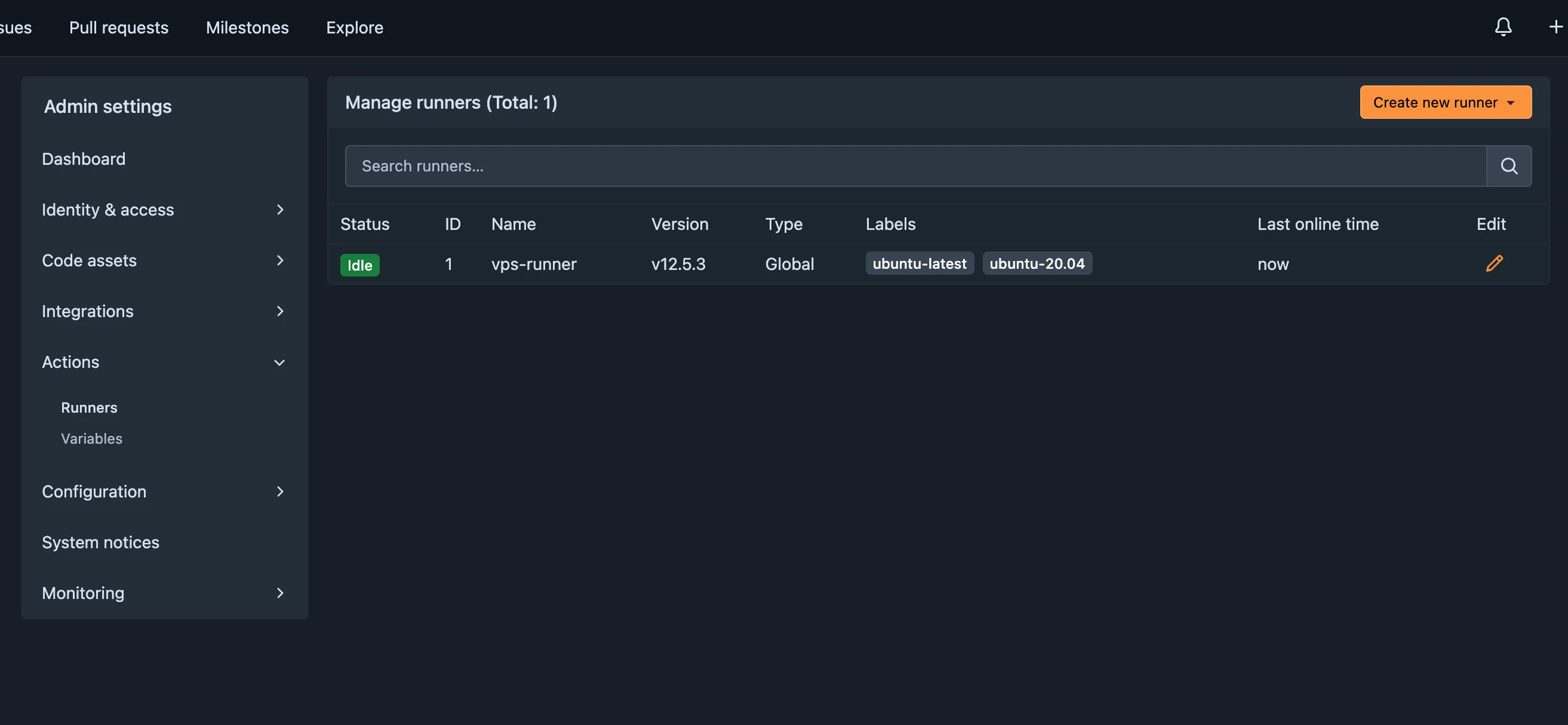
docker compose logs -f runnerYou can also check that the runner successfully registered with the Forgejo instance by going to the Forgejo instance and checking the runners page. This can be found by signing in, clicking on profile icon in top right, and then clicking on Site Adminstration. Then in the left menu, click Actions > Runners.
Configure runner resource limits
Configuring resource limits is important for the runner since it will be located on the VPS along with our other services, such as forgejo, nginx, and (soon) git-pages.
If we do not set a resource limit, it is possible the Forgejo runner could use all the system resources of our VPS during a complex job and take down our Forgejo instance, nginx, or (soon) git-pages.
Bring down the runner container with docker compose down and edit the docker-compose.yml file to add the resource limits as shown below.
services:  docker-in-docker:    image: docker:dind    container_name: "docker_dind"    privileged: "true"    command: ["dockerd", "-H", "tcp://0.0.0.0:2375", "--tls=false"]    restart: "unless-stopped"    deploy:      resources:        limits:          cpus: "2.0" # Use up to 2 cores for runner builds          memory: 3072M # 3GB RAM limit        reservations:          memory: 512M
  runner:    image: "data.forgejo.org/forgejo/runner:12"    links:      - docker-in-docker    depends_on:      docker-in-docker:        condition: service_started    container_name: "runner"    environment:      DOCKER_HOST: tcp://docker-in-docker:2375    user: 995:993 # The git user we created earlier.    volumes:      - ./data:/data    restart: "unless-stopped"
    command: '/bin/sh -c "sleep 5; forgejo-runner daemon"'
Run the docker-compose.yml file again and the runner should have resource limits set.
How to run Forgejo Actions
Actions can be run through the .forgejo/workflows directory in your repository. When these actions run, they will be executed on the runner we setup earlier.
I created an example project: test-actions. Here is a sample workflow from this project that I will be using to test the runner.
name: Forgejo Actions Demorun-name: ${{ github.actor }} is testing Forgejo Actions 🚀on: [push]jobs: Explore-Forgejo-Actions: # Use the label you assigned during runner registration (e.g., 'docker' or 'ubuntu-latest') runs-on: ubuntu-latest steps: - run: echo "🎉 The job was automatically triggered by a ${{ github.event_name }} event." - run: echo "🐧 This job is now running on a ${{ runner.os }} server!" - name: Check out repository code uses: actions/checkout@v4 - run: echo "💡 The ${{ github.repository }} repository has been cloned to the runner." - run: | echo "🛠️ Testing code execution..." node --version || echo "Shell is working!" - run: echo "🍏 This job's status is ${{ job.status }}."This example Forgejo Actions workflow demonstrates a simple CI job that is triggered on every push to your repository.
It checks out the code, prints various context information, confirms the ability to run shell commands (including checking Node.js version if available), and outputs the job status at the end.
You can use and modify this as a starting point for your own automation workflows.
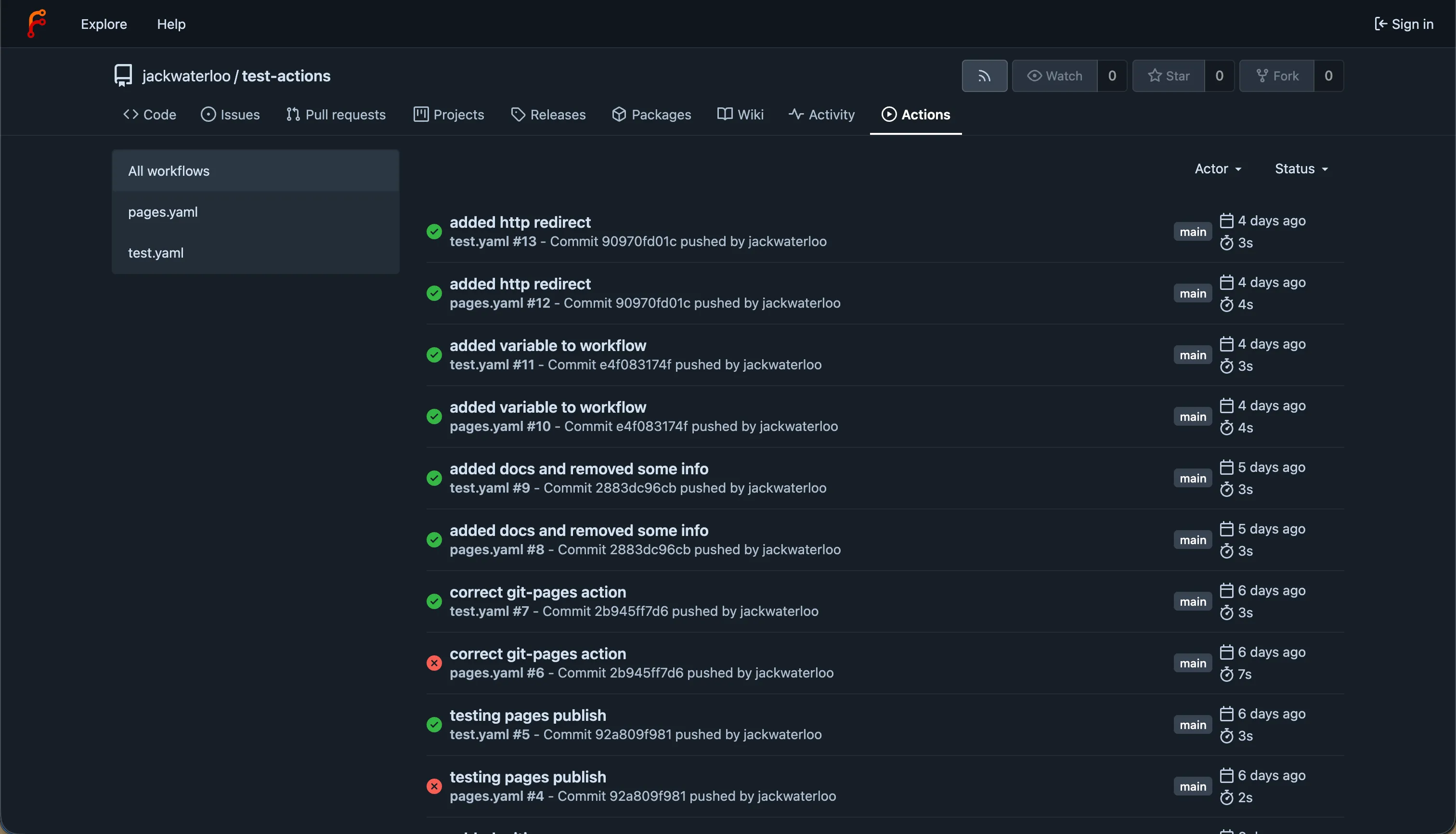
You can check if actions successfully ran by going to the Forgejo instance and checking the actions page for a repository. Example: https://git.jackwaterloo.com/jackwaterloo/test-actions/actions
For more information on Forgejo Actions and what can be done with them, see the Forgejo Actions documentation.