Table of Contents
Previously, I walked you through setting up a VPS and running a Forgejo instance. Then I walked you through setting up a Forgejo runner to execute workflows when you push to a repository. This is a tutorial that assumes you have followed those projects and have a working Forgejo instance and runner on a VPS.
One of my primary workflows using actions is to deploy static websites. That is where git-pages comes in. It is a scalable static site server for Git forges (like GitHub Pages or Netlify). There is a git-pages action integration that allows you to deploy your websites through Forgejo Actions.
This guide covers running git-pages on your VPS with Docker, behind an existing nginx server that handles TLS (e.g. Let’s Encrypt). You use a subdomain for websites on git-pages (e.g. pages.example.com) and deploy them from Forgejo using Forgejo Actions.
I have created a repository with some materials I will refer to throughout this project.
With these types of projects I like to do DNS first.
Update (July 2026): I have since taken down my git-pages container and the Forgejo Actions runner it depended on. I still self-host Forgejo to display code, but I did not want to maintain that stack.
DNS and nginx
At your domain DNS provider (I use Cloudflare), add the following DNS records:
- A (or AAAA):
pages.example.com→ your VPS IP (optional; for a single “index” site on the bare subdomain). - A (or AAAA):
*.pages.example.com→ your VPS IP (required for per-user sites likeusername.pages.example.com).
Wildcard TLS
Since I use Cloudflare for DNS I can use the certbot-dns-cloudflare plugin to create and delete the challenge TXT records via the Cloudflare API, so wildcard certs and renewal are fully automated. We already installed this and configured it for our Forgejo instance in the VPS Forgejo project.
Assuming you have set that up:
-
Request a wildcard certificate
Terminal window sudo certbot certonly --dns-cloudflare \--dns-cloudflare-credentials /etc/letsencrypt/cloudflare.ini \-d pages.example.com \-d "*.pages.example.com" \--agree-tos \-m your-email@example.comCertbot will use the plugin to create the
_acme-challengeTXT record(s), complete the DNS-01 challenge, and save the certs (e.g. under/etc/letsencrypt/live/pages.example.com/). -
Renewal
Renewal is automatic:
certbot renew(e.g. from cron or systemd timer) will use the same plugin and credentials, with no manual TXT records. Test with:Terminal window sudo certbot renew --dry-run
With DNS and certificates in place, add a new nginx server block for the Pages subdomain (and optionally rely on the same block for the wildcard).
Nginx server block
Create a new configuration file for the nginx server block.
sudo vi /etc/nginx/conf.d/git-pages.confUse the paths certbot reported earlier (e.g. /etc/letsencrypt/live/pages.example.com/fullchain.pem and privkey.pem) in your nginx server block.
Example for both the pages.example.com and *.pages.example.com subdomains:
# Pages subdomain (and all user subdomains *.pages.example.com)
# Redirects http to httpsserver {    listen 80;    listen [::]:80;    server_name pages.example.com *.pages.example.com;    return 301 https://$host$request_uri;}
server {    listen 443 ssl http2;    listen [::]:443 ssl http2;    server_name pages.example.com *.pages.example.com;
    # Use your existing Let's Encrypt paths    # Certbot reported these paths earlier    ssl_certificate     /etc/letsencrypt/live/pages.example.com/fullchain.pem;    ssl_certificate_key /etc/letsencrypt/live/pages.example.com/privkey.pem;
    location / {        proxy_pass http://127.0.0.1:3001;        proxy_http_version 1.1;        proxy_set_header Host $host;        proxy_set_header X-Real-IP $remote_addr;        proxy_set_header X-Forwarded-For $proxy_add_x_forwarded_for;        proxy_set_header X-Forwarded-Proto $scheme;    }}
Reload nginx after changes:
nginx -t # check for errorssystemctl reload nginx # reload nginxNext, lets run git-pages itself so there is a service to proxy to.
Docker deployment
I will be following along with the documentation here to deploy git-pages on a VPS.
First, create a TOML file for configuration.
mkdir git-pagescd git-pagesvi config.tomlPlease copy the example config_example.toml file from my repo and edit it to your liking. At minimum, change the highlighted lines below.
# Production config for git-pages behind nginx (TLS on nginx).# Copy to config.toml and set domain + clone-url to your Forgejo.
log-format = "text"
[server]pages   = "tcp/:3000"caddy   = "tcp/:3001"metrics = "tcp/:3002"
# Match your Pages subdomain; <user> and <project> are filled by git-pages.# Example: pages.example.com -> sites at username.pages.example.com and username.pages.example.com/project/[[wildcard]]domain   = "pages.example.com"   # <-- set to your subdomain (e.g. pages.yourdomain.com)clone-url = "https://git.example.com/<user>/<project>.git"  # <-- your Forgejo base URLindex-repo = "pages"             # repo name used for username.pages.example.com/index-repo-branch = "pages"     # branch to deployauthorization = "forgejo"        # use Forgejo API for private repo push checks (sends Forge-Authorization)
[storage]type = "fs"
[storage.fs]root = "/app/data"
[limits]max-site-size = "128M"max-manifest-size = "1M"max-inline-file-size = "256B"git-large-object-threshold = "1M"max-symlink-depth = 16update-timeout = "60s"max-heap-size-ratio = 0.5forbidden-domains = []# Restrict deploys to your Forgejo only (recommended)allowed-repository-url-prefixes = ["https://git.example.com/"]  # <-- your Forgejo URLallowed-custom-headers = ["X-Clacks-Overhead"]
[audit]node-id = 0collect = false
[observability]slow-response-threshold = "500ms"
Docker Compose
This is a similar setup to what I did to deploy the Forgejo container. The git-pages container runs as the git user so it can manage the data directory.
services: git-pages: image: codeberg.org/git-pages/git-pages:latest container_name: git-pages restart: unless-stopped # Run as host git user (uid:gid) so container can write to ./data user: "995:993" # my git user volumes: - ./data:/app/data - ./config.toml:/app/config.toml:ro ports: - "127.0.0.1:3001:3000" # need 3001 on the host since Forgejo uses 3000File permissions
With the config file and docker-compose file ready, you are seemingly ready to start the git-pages container. Before you do, make sure file permissions are correct.
The project directory is under my home (/home/jack/git-pages), so it is owned by jack, but the git-pages container runs as git and mounts ./data from there. I need to set ownership and permissions so git can read and write that directory without making the files globally readable or running the container as jack.
cd /home/jack/git-pages# Recursive: owner jack, group git (993)sudo chown -R jack:git .# Group can read/write/execute; others nonesudo chmod -R g+rwX,o= .# So new files created inside get group gitsudo find . -type d -exec chmod g+s {} \;Run the container
From the repo root:
cd ~/git-pagesdocker compose up -dCheck that it is running:
docker psOnce git-pages is up behind nginx, the action that deploys to it must see git-pages as the server, not nginx. The next section covers that.
Nginx and HTTP headers
When git-pages runs behind nginx, nginx terminates TLS and proxies to the backend (e.g. http://127.0.0.1:3001). By default nginx adds its own Server: nginx/1.28.1 HTTP header to the response. The client (the action) then sees nginx’s header instead of (or in addition to) git-pages’ header. That causes problems when the action tries to push to git-pages.
error: the tool only works with git-pages, but the URL points to a "nginx/1.28.1" serverResponse headers
The backend (git-pages) already sends Server: git-pages. For the client to see that value and not nginx’s, you need to do the following:
- Remove nginx’s
Serverheader from the response. - Use the upstream
Serverheader from git-pages.
In plain nginx you cannot remove the Server header that nginx adds. You need the headers-more module. The module allows us to edit HTTP headers on the response.
headers-more module
The module was not available in the default repositories for AlmaLinux 9. We will have to build from source and there are a fair number of steps. Luckily the installation instructions from the headers-more repo are clear, and I (mostly AI here) have created a bash script that runs through them for you. You can find that in the repo I mentioned earlier.
Update git-pages.conf
Add the following to your nginx server block:
# Pages subdomain (and all user subdomains *.pages.example.com)
# Redirects http to httpsserver {    listen 80;    listen [::]:80;    server_name pages.example.com *.pages.example.com;    return 301 https://$host$request_uri;}
server {    listen 443 ssl http2;    listen [::]:443 ssl http2;    server_name pages.example.com *.pages.example.com;
    # Use your existing Let's Encrypt paths    ssl_certificate     /etc/letsencrypt/live/pages.example.com/fullchain.pem;    ssl_certificate_key /etc/letsencrypt/live/pages.example.com/privkey.pem;
    location / {        proxy_pass http://127.0.0.1:3001;        proxy_http_version 1.1;        proxy_set_header Host $host;        proxy_set_header X-Real-IP $remote_addr;        proxy_set_header X-Forwarded-For $proxy_add_x_forwarded_for;        proxy_set_header X-Forwarded-Proto $scheme;
        more_clear_headers 'Server';        more_set_headers 'Server: $upstream_http_server';    }}
After making the changes, test the nginx config, then reload nginx if there are no errors:
sudo nginx -tsudo systemctl reload nginxForgejo and Actions workflow
With nginx forwarding the correct Server header, configure Forgejo and the workflow that publishes to git-pages.
Pages site variable
On your Forgejo instance, navigate to site administration and set a pages variable to your Pages subdomain, e.g. https://pages.example.com (no trailing slash).
Site Administration → Actions → Variables:
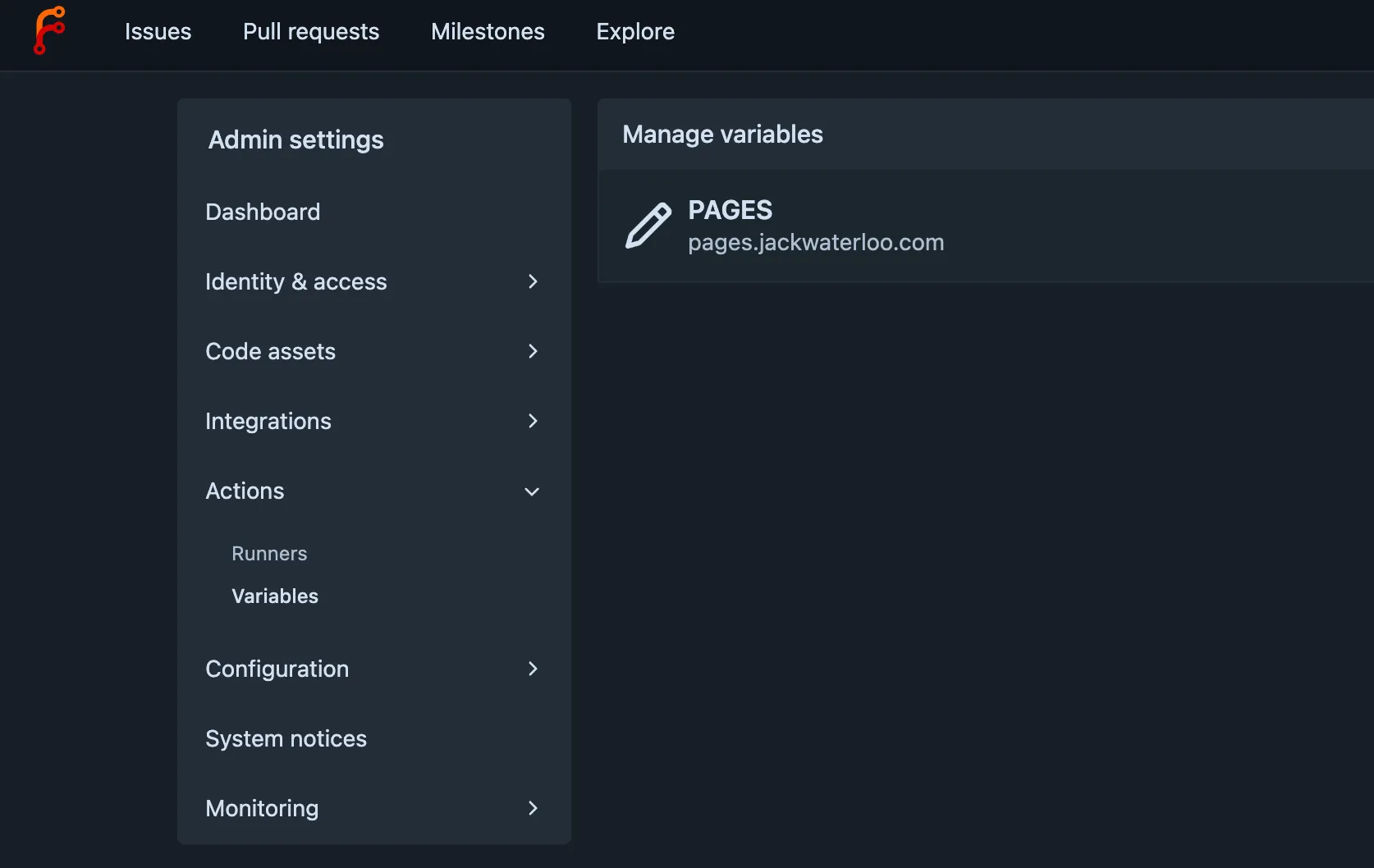
When you push a static site to git-pages, reference the git-pages URL using the variable. In the future if you need to change this URL, you can change the subdomain using the variable instead of editing every repository.
Actions workflow
Use the git-pages Action in a Forgejo Actions workflow to push to git-pages.
- Forge-Authorization (for private repos): the action can pass a Forgejo token for authorization.
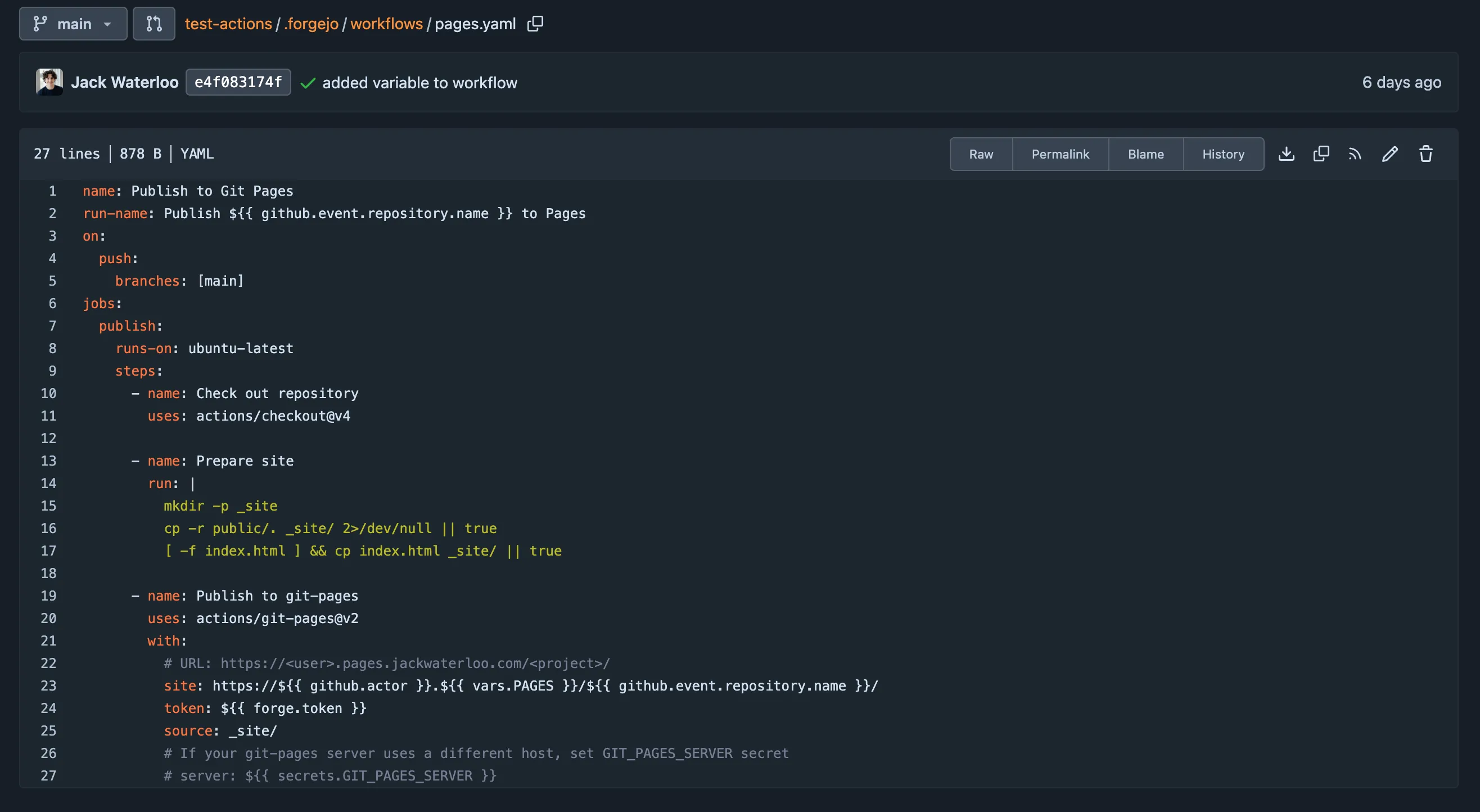
Example workflow:
name: Publish Pageson: push: branches: [pages]jobs: publish: runs-on: ubuntu-latest steps: - uses: actions/checkout@v4 with: fetch-depth: 0 - name: Publish to git-pages uses: actions/git-pages@v4 # use latest tag with: pages_url: https://${{ github.actor }}.${{ vars.PAGES }}/${{ github.event.repository.name }}/ # For private repos, add a Forgejo token (e.g. from repo secrets): forge_token: ${{ forgejo.token }} # The token for the Forgejo instance.You can see a different working workflow I deployed here.